· 3 min read
Talk instead of type with Handy
Handy is a free app that turns your voice into text on your own computer. Here’s how I use it for AI prompts, emails and first drafts.
I can talk a lot faster than I can type. For most of my working life that didn’t matter much, because the keyboard was the only way to get words onto a screen. Now there are apps that turn speech into text well enough to use every day, and the one I use is called Handy.

Image from handy.computer.
What Handy does
Handy is a small, free, open source app for Windows, Mac and Linux. You press a keyboard shortcut, say what you want to write, and Handy puts the text into whatever you have open. That can be an email, a document or the chat box of an AI tool.
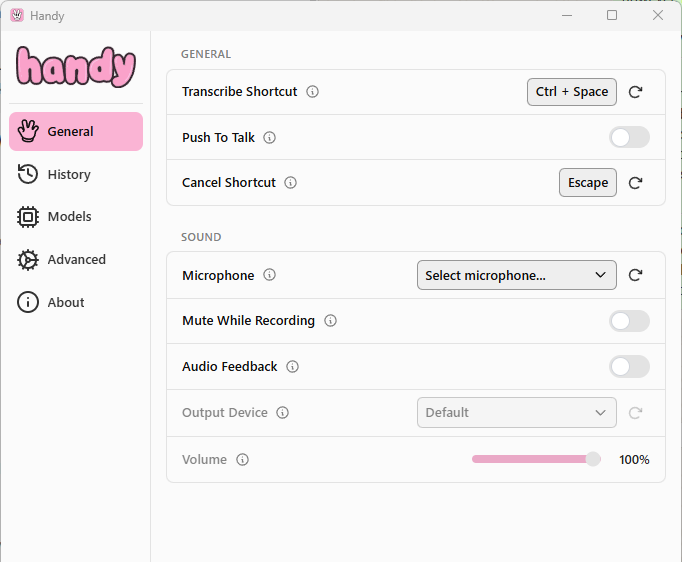
Mine is set to Ctrl + Space. I press it once to start, talk, then press it again to stop, and the words show up where my cursor is. If you’d rather hold the keys down while you speak, turn on push to talk and it only listens while they’re held.
How I use it
I don’t reach for the keyboard to start it. I put the shortcut on one of the thumb buttons on my mouse, and Return on another, so everything happens under my thumb.
Say I want to ask an AI tool something. I click into the prompt box, press the thumb button and talk. When I press it again, Handy pastes the words straight into that box, because that’s where my cursor is. Then I hit Return with the other thumb button and it’s sent. It works the same way in any box you can type in, like an email reply or a form on a website.
If your mouse has thumb buttons, the software that came with it can usually set them to a keyboard shortcut.
Your voice stays on your computer
This is the part I like most. Handy does the speech recognition on your own machine instead of sending your recording to a server. So you can dictate a note about a client, or a first pass at a private letter, without wondering where the audio ended up.
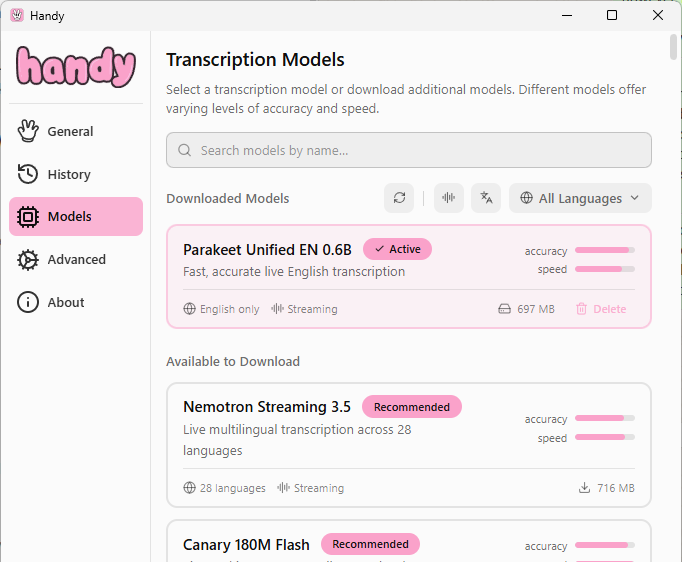
Because your computer does the work, you download a speech model when you set it up. I use one called Parakeet Unified EN. It’s English only and just under 700 MB. The Models page lists others, including some that handle many languages, with a rough guide to how fast and how accurate each one is.
Where it helps
Prompting AI tools is where talking pays off most. Typed prompts tend to come out short, because typing is slow and a little tedious. When you talk, it’s easy to explain the whole situation: who the work is for and what you want back. That extra detail usually gets you a better answer.
Emails and letters are the next easiest win. Say it the way you’d say it to the person across the table, then tidy it up. Fixing a rough draft is faster than staring at an empty one.
It also helps with longer writing, like an article or a proposal. The first few paragraphs are often the hardest part. Talking through the idea gets something on the page quickly, and from there it’s an editing job.
Like any speech to text tool, it can mishear a name or a word, and spoken sentences wander more than written ones. Treat what comes out as a draft and read it over before you send it.
Getting set up
- Download Handy from handy.computer. It’s free.
- Open it and give it the permissions it asks for, like access to your microphone.
- Pick a speech model on the Models page and let it download.
- Choose a shortcut you’ll remember, click into an email and try it.
Start with something small, like a reply you’ve been putting off. If you’d like help setting up tools like this, or trying AI on a real task from your week, here’s how I can help.